

Members and access
Give people their own login and direct access to account pools.
Members belong to a workspace. They get their own login and personal API keys; access to an account pool is granted to each person directly. You do not need to create a personnel team.
Give someone access
- Use the switcher beside the SubLane logo to select the workspace.
- Open Administration → Members. Choose Create invite link to let a new person set their own username and password, Add member to create their login yourself, or Add existing account if they already use another workspace. Share invitations or newly created passwords privately.
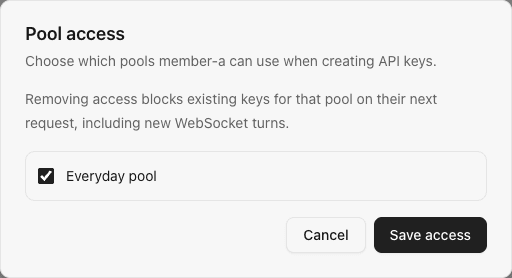
- For an ordinary member, use Pool access beside the success message or in their row. Select the account pool they may use and save. Administrators can use enabled pools without a direct grant. If no pool exists yet, first connect an account and create one under Account pools.
- The member signs in (invited members are signed in after registration), creates a personal API key for that pool, configures their client, and checks their first call under Requests.
Each invitation is bound to the selected workspace, expires after seven days, and can register one new account. The link is displayed when created; copy it before leaving the page. It does not grant access to any account pool. Existing users should be added with Add existing account instead.
New members receive no automatic pool grants. Newly created pools are not automatically granted to existing members. Administrators can use enabled pools without a separate grant; ordinary members see only the enabled pools they were granted in the selected workspace.
To give different people different subscriptions, create separate pools and grant only the relevant ones. If you also need a per-person consumption limit, open Administration → Resource allowances after creating a dedicated pool; see the three allowance choices.
Example member pool grant with synthetic names:
What happens when access changes
Disabling a member on the Members page blocks their browser access and personal keys in this workspace. Their global login and access to other workspaces remain available. Re-enabling the membership restores workspace access after the next session check; it does not revive a key that was explicitly revoked.
Removing a pool grant blocks new requests and WebSocket turns using keys bound to that pool. A request already admitted may finish. Restoring the grant allows still-active keys to work again; it does not change their immutable pool binding.
Roles and identities
A user has one login identity and may belong to multiple workspaces with different roles. Owners and administrators manage the selected workspace; ordinary members manage only their own keys, requests, usage, and limits. The server checks the current workspace role independently of the browser menu.
The Members page lists the owner, administrators, and ordinary members, newest user ID first and up to 50 per page. The owner is visible but cannot be disabled or assigned a different role here. Add member creates a new login and membership together; usernames are unique across the instance. Add existing account joins an existing login by username without changing its password. Choose its role during the join, or use Change workspace role on a listed member. Role changes preserve whether the membership is enabled; enable a disabled member before promoting them to administrator.
Registration requires an invitation; open public registration and account deletion are not supported. Only the platform administrator in the first workspace can reset someone else's global password. See password controls.
API reference
These management routes use the selected workspace and require an owner or administrator role. Mutations require same-origin JSON requests.
| Route | Purpose |
|---|---|
GET /api/members?cursor=0 | List the owner, administrators, and ordinary members in this workspace. |
POST /api/members | Create a login and add it as a member here. |
POST /api/members/invitations | Create a one-use, seven-day invitation for this workspace. The raw token is returned once and stored only as a digest. |
POST /api/auth/register | Public same-origin endpoint: submit the invitation token, new username, and password; select the invited workspace in the request header. |
PATCH /api/members/{id} | Enable or disable an ordinary member's membership here. |
PATCH /api/members/{id}/role | Change a member's role without changing their enabled state. |
GET /api/groups/members/{id} / PUT /api/groups/members/{id} | Read or replace the member's direct pool grants. |
POST /api/tenants/{id}/members | Add an existing login by exact username or user ID as a member or administrator. A repeated username join returns a conflict; use the role endpoint to change an existing membership. |
The platform administrator may reset a global member password through POST /api/members/{id}/password in the first workspace. A whole-instance backup includes every workspace and its users.